All MLS® Listings
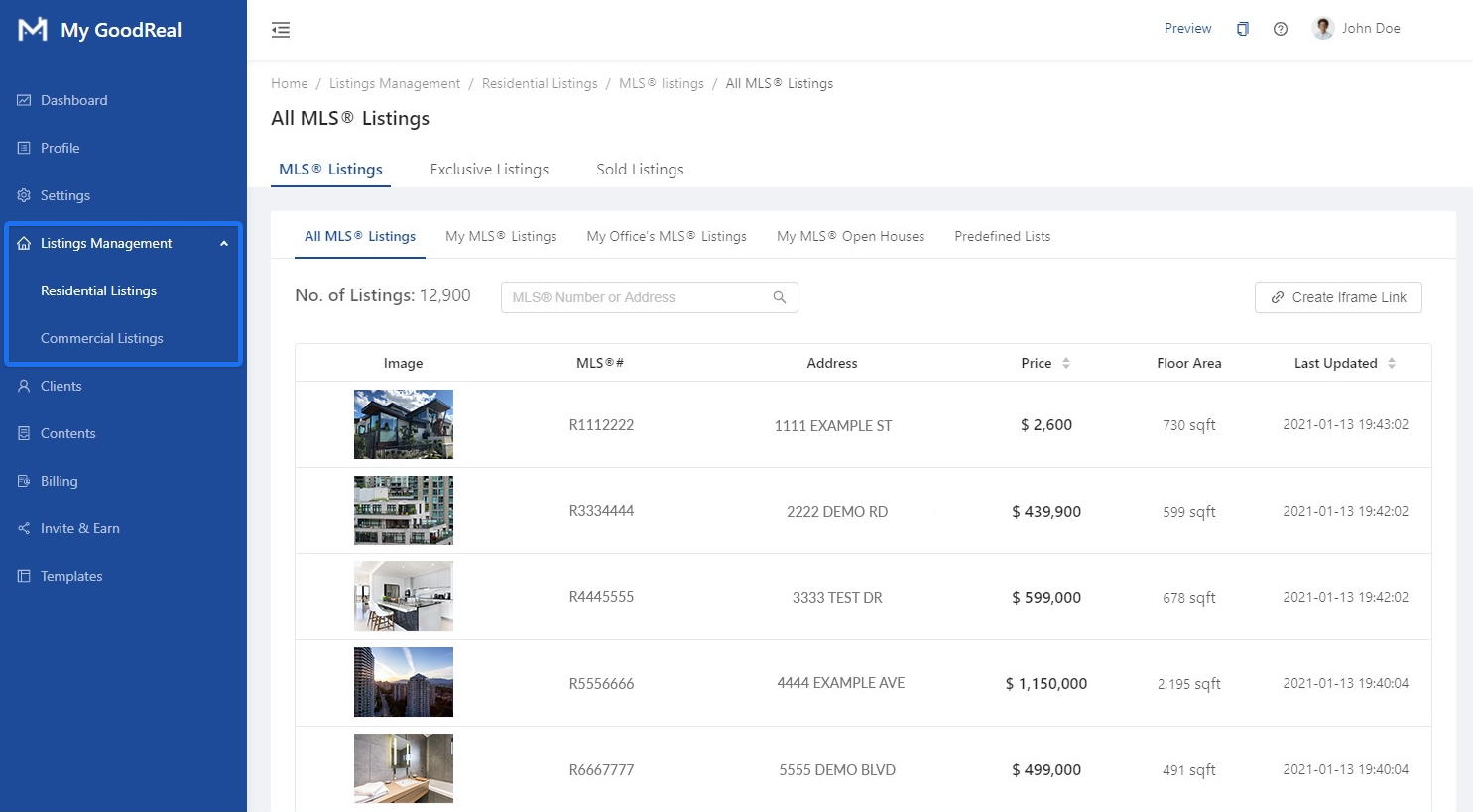
Search for a listing by entering an MLS® Number or Address.

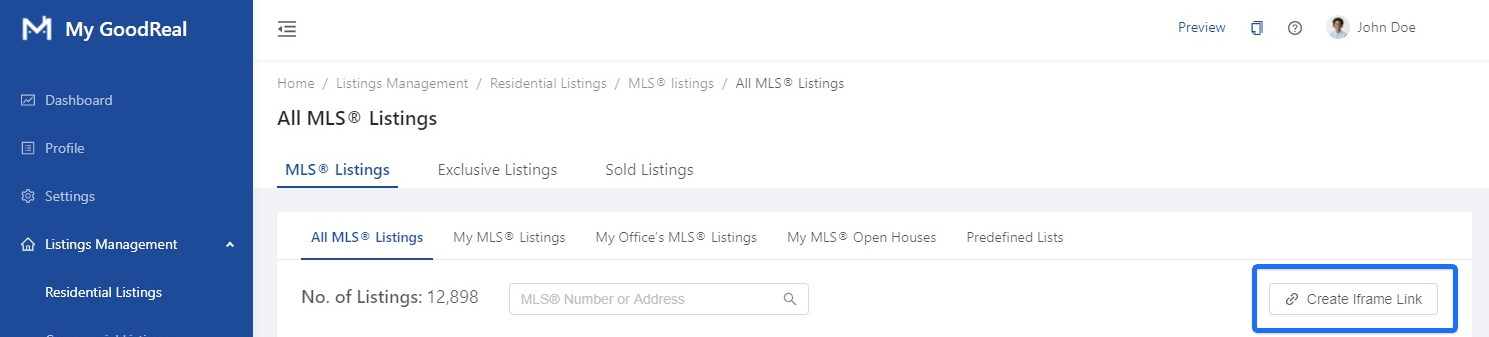
Click to Create Iframe Link.
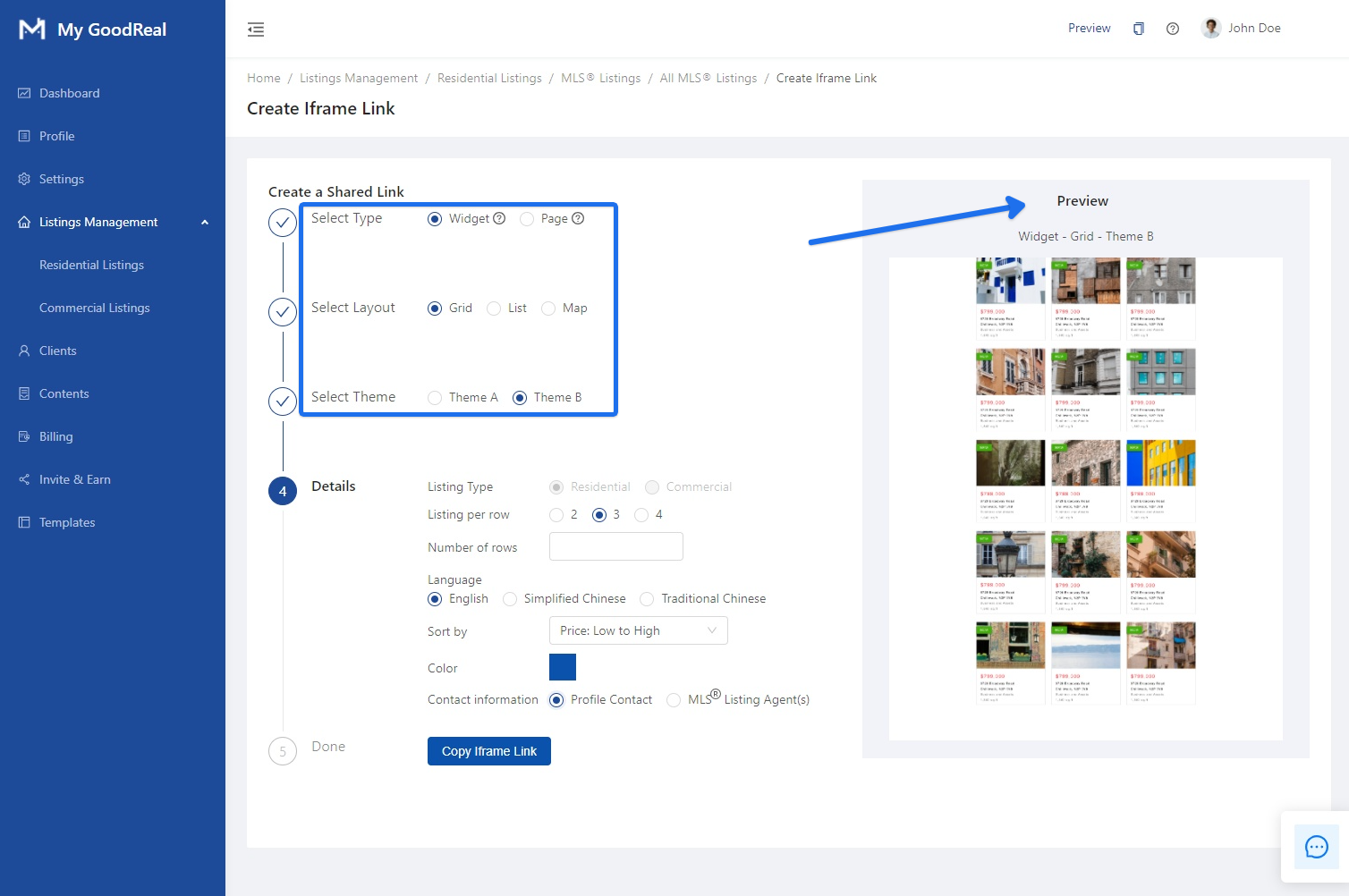
To Create a Shared Link, select one of the options for Type, Layout, and Theme. You can Preview how the Iframe link will look like.
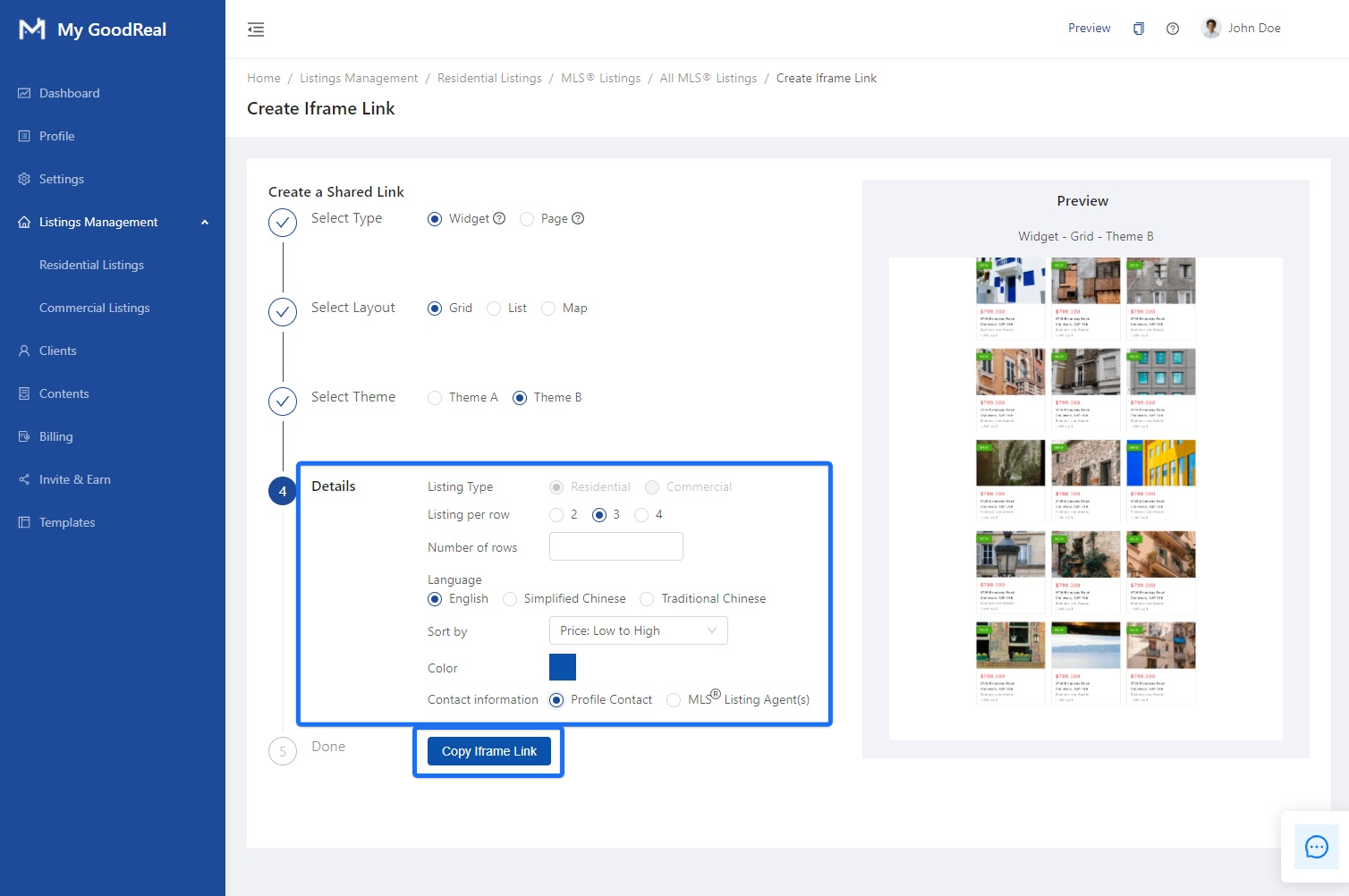
Fill in additional Details by either clicking the button options, choosing from the dropdown menu, or typing in text. Click Copy Iframe Link to finish creating a shared link.
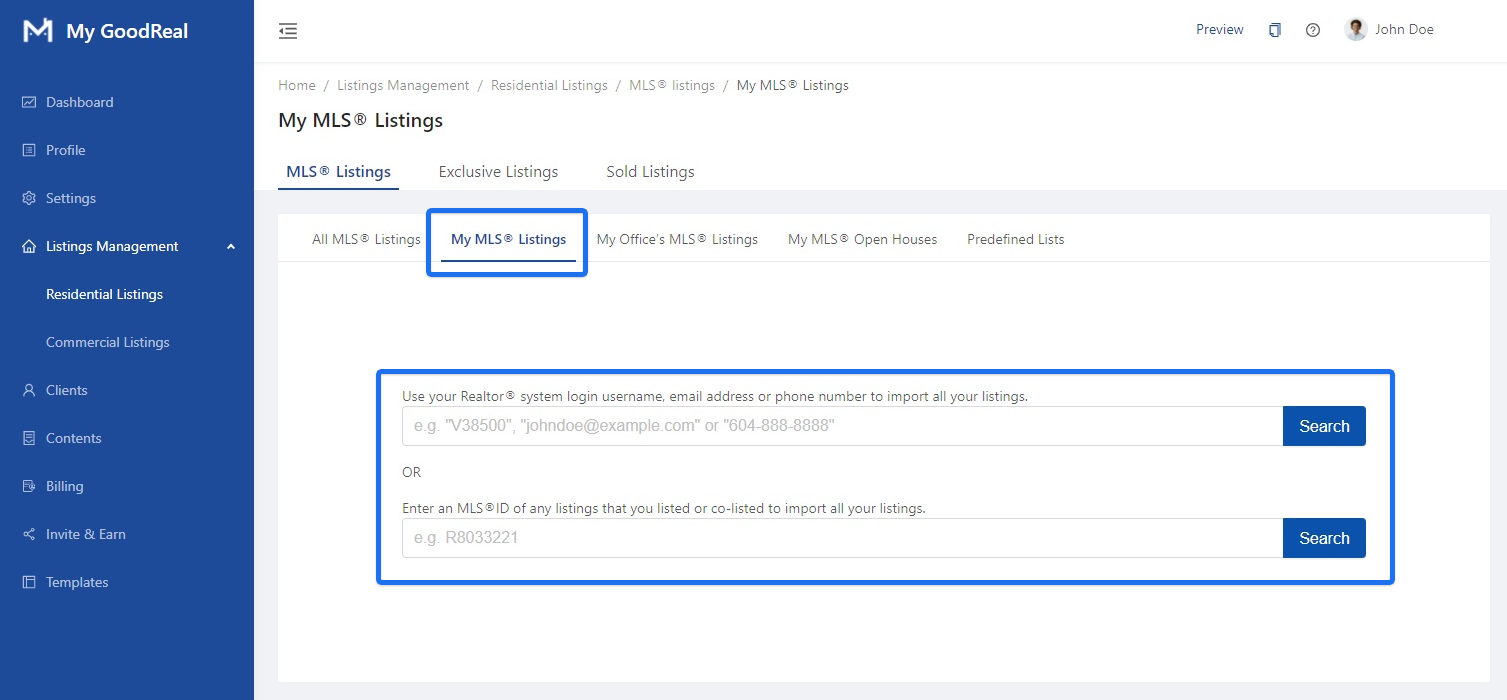
My MLS® Listings
To import your MLS® Listings, you can either:
- Enter your personal information, such as your REALTOR® username, email address, or phone number. Click Search.
- Enter an MLS® ID. Click Search.
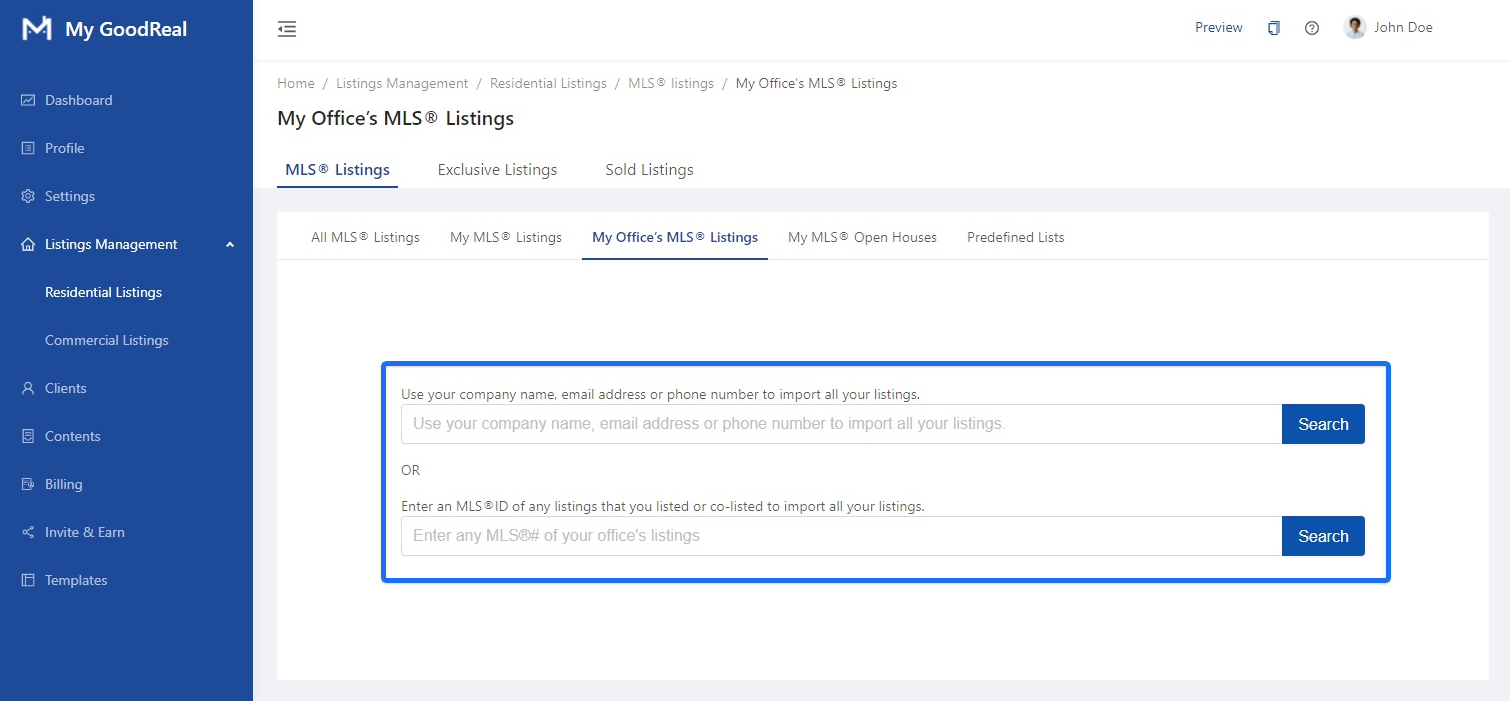
My Office’s Listings
To import MLS® Listings under your brokerage company, you can either:
- Enter your company information, such as your company name, email address, or phone number. Click Search.
- Enter an MLS® ID of your office’s listings. Click Search.
My MLS® Open Houses
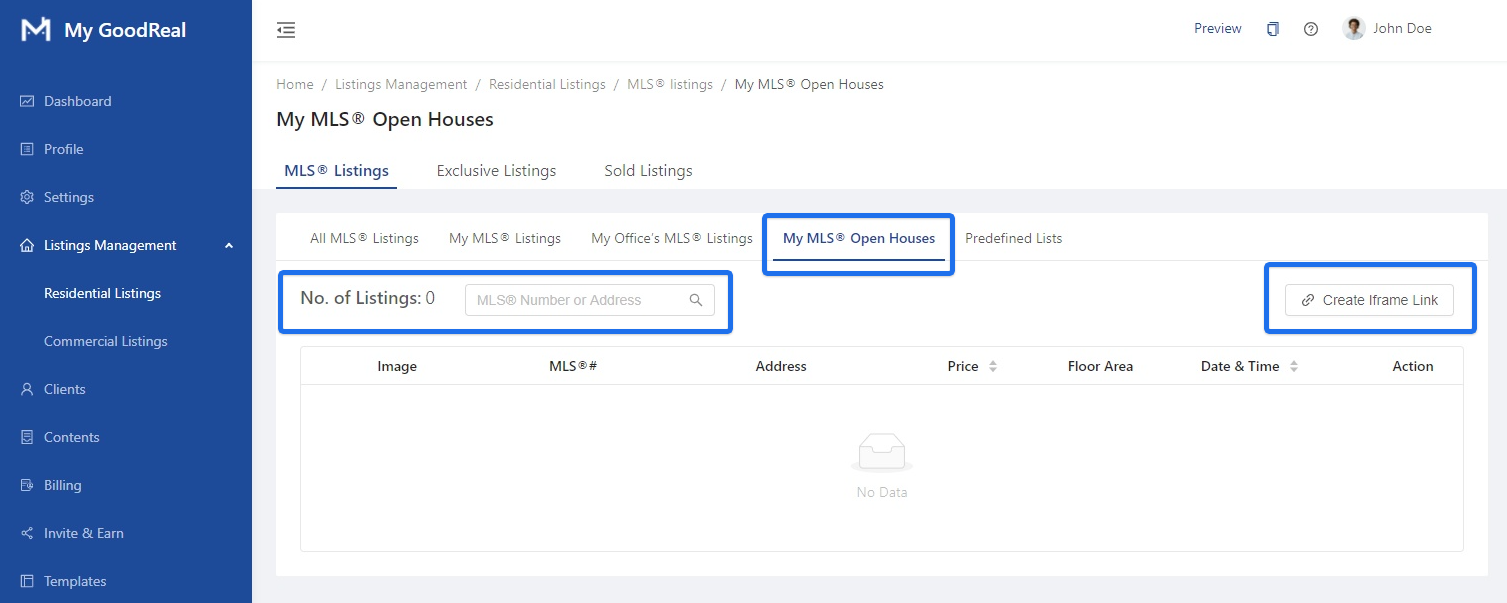
View a list of all your open houses. You can search for a listing by entering an MLS® Number or Address, or click the attachment icon to Create Iframe Link.
Predefined Lists
Categorize your listings into predefined conditions. You can Search by Predefined List or Search by Customer Name.

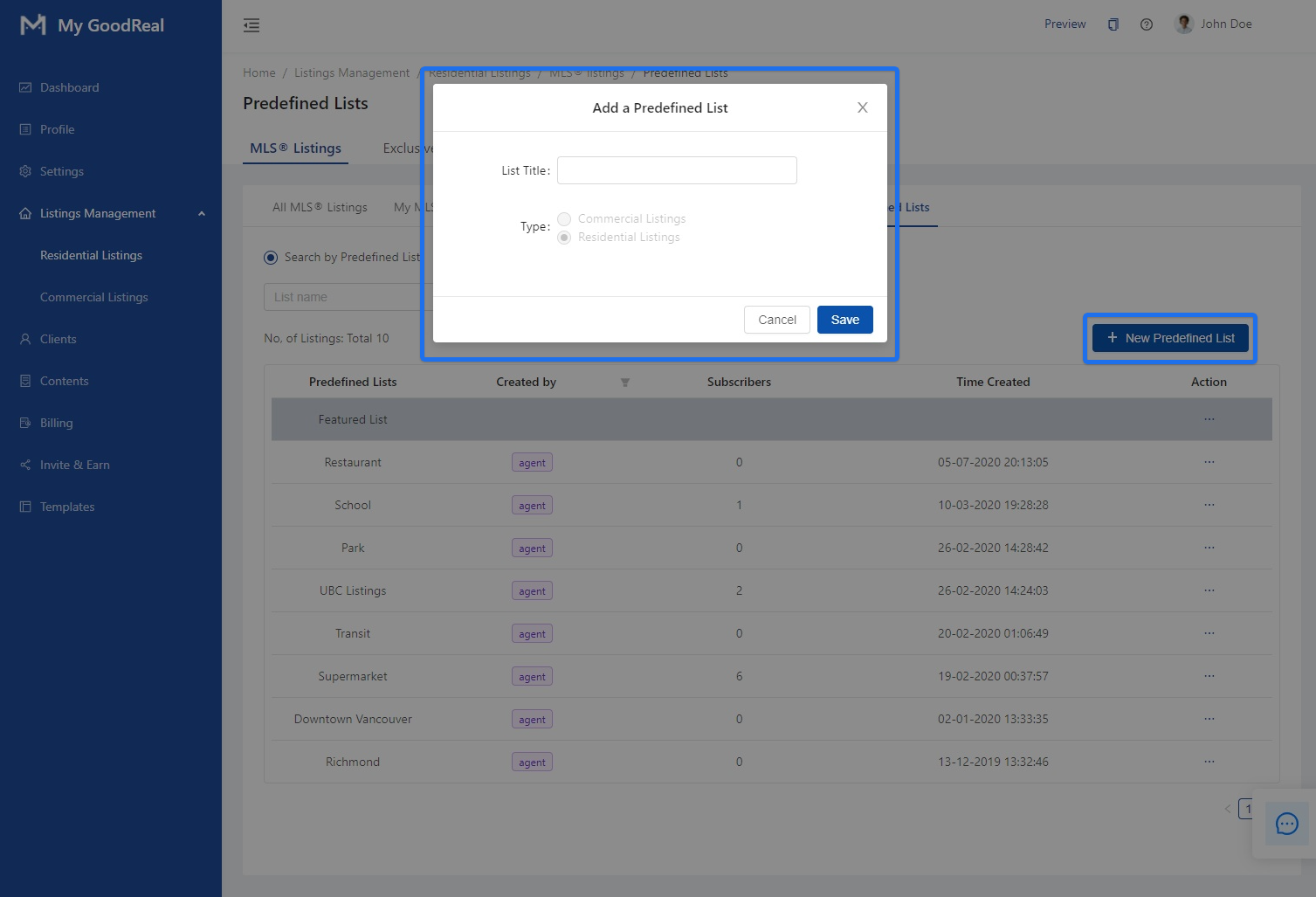
Click + New Predefined List to create a new list. Enter the List Title and choose whether it’s a Commercial Listing or Residential Listing.
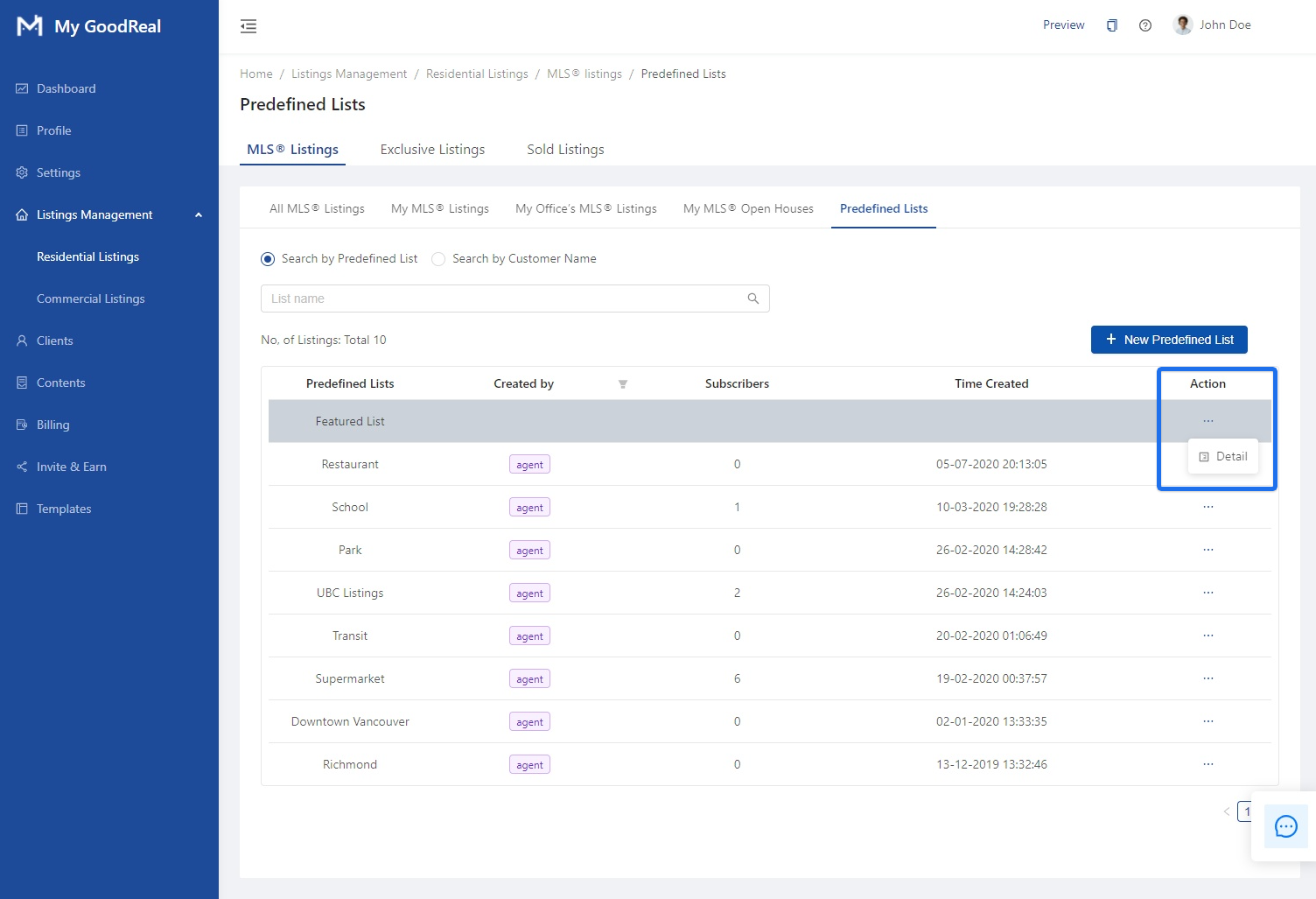
Click the 3 dots under Action to view Detail.
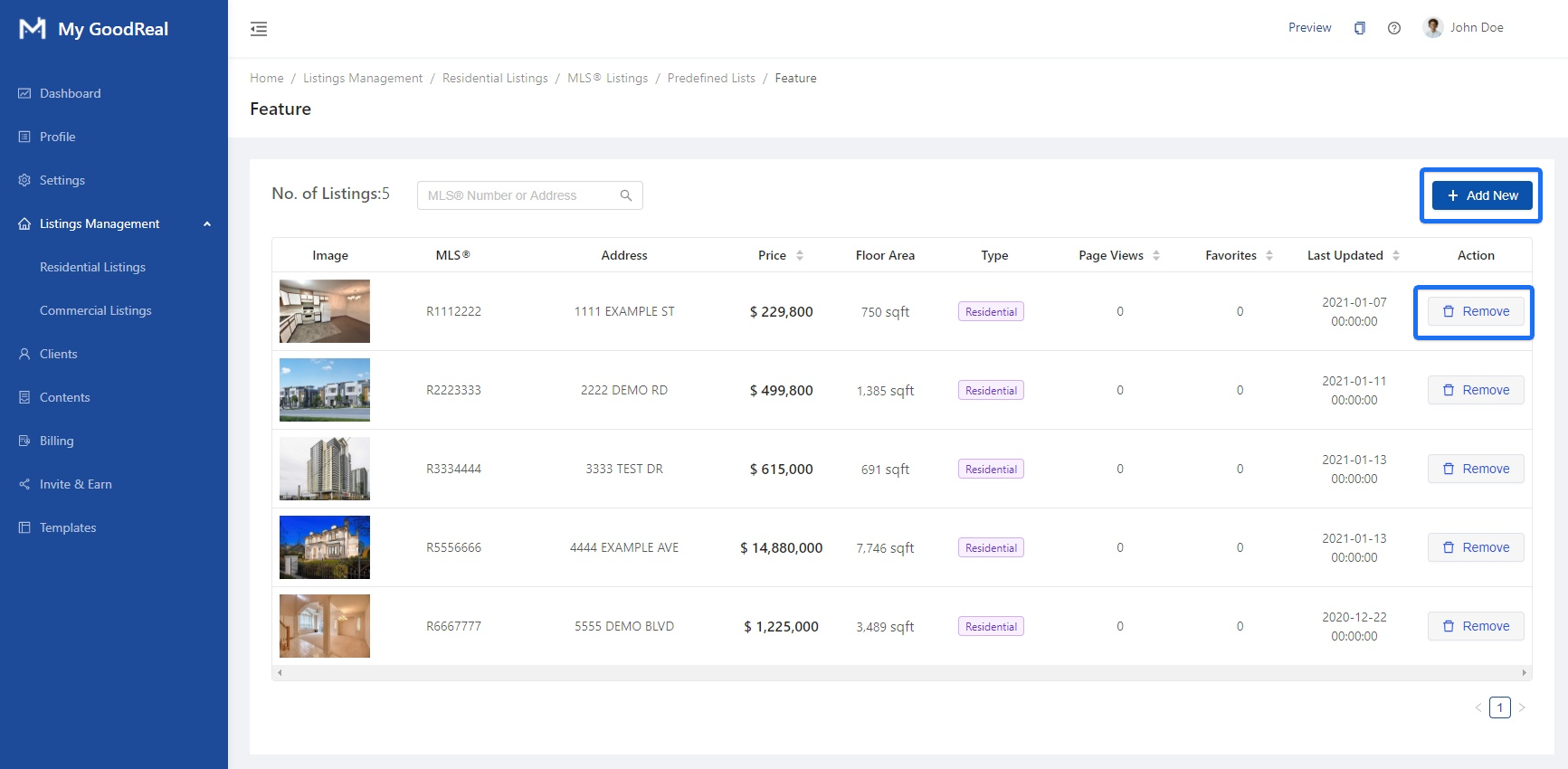
After clicking Detail, you can view all the listings under the corresponding Predefined List. Click + Add New to add another listing. Click Remove to delete a listing from the predefined list.

Comments
0 comments
Article is closed for comments.